What is a Virtual Box? According to virtualbox.org, VirtualBox is a general-purpose full virtualization software for x86_64 hardware (with version 7.1 additionally for macOS/Arm), targeted at laptop, desktop, server and embedded use.
Downloading Virtual Box & Kali-Linux
Which means depending on the OS [Operating System] you're using you may need to download that specific package. In the downloads page you will see this:
[VirtualBox Platform Packages] you need to select the package that fits your system: Windows/macOS-Intel/macOS-Apple/Linux distributions/Solaris hosts/solaris 11 IPS hosts.
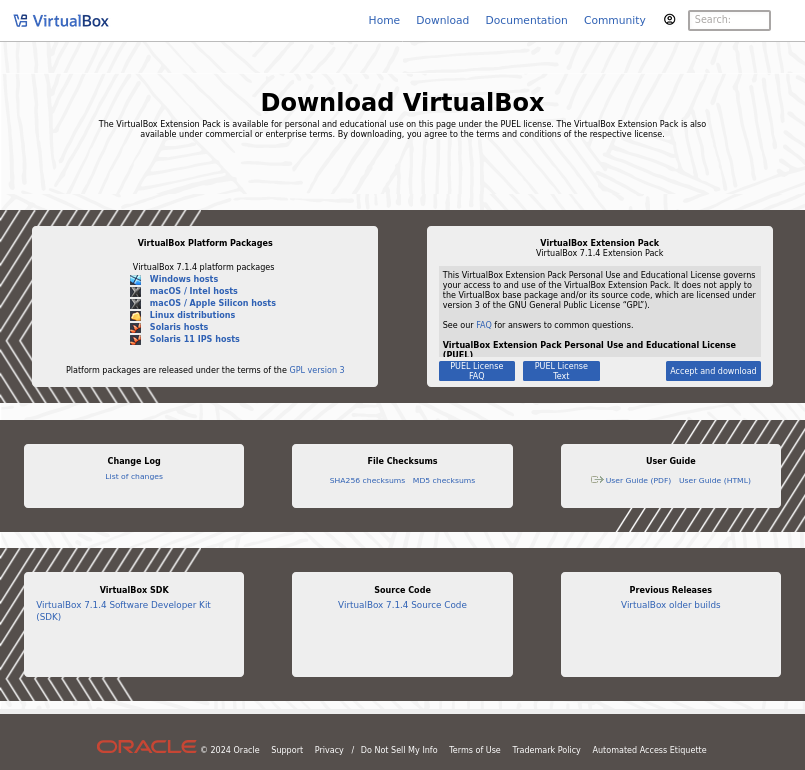
Now that you have downloaded the right Package you need to install it on your system, for this blog post we will add a Windows OS Installer.
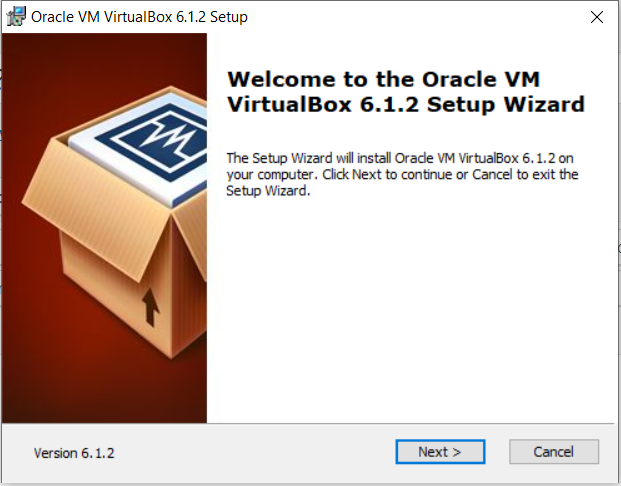
1.Go to your Downloads Folder and open the package file
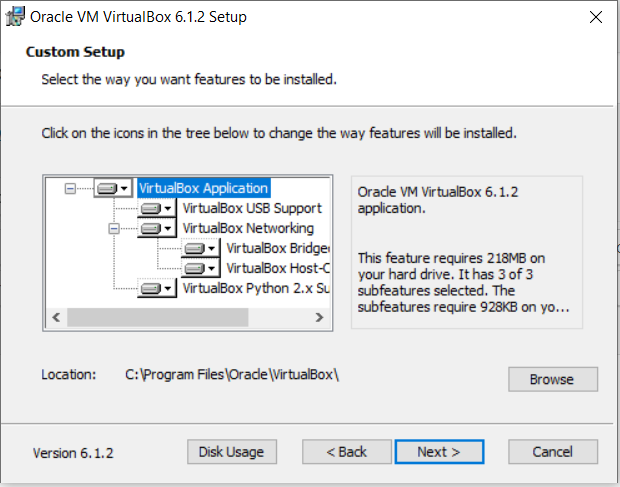
2.Follow the installation Steps and Click Next...
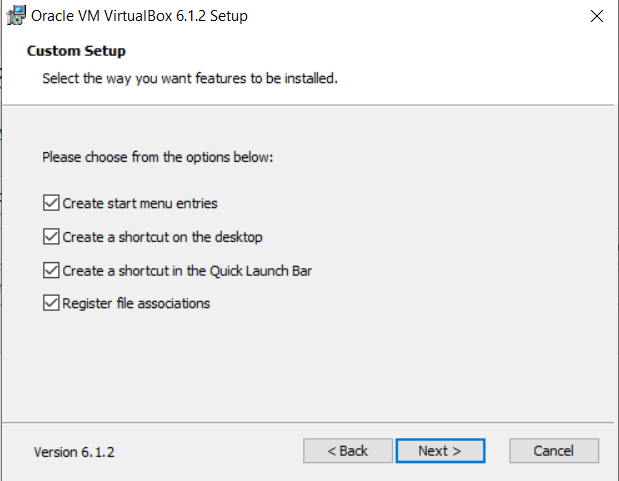
3.Make sure you read everything and select only things you want on you Operating System
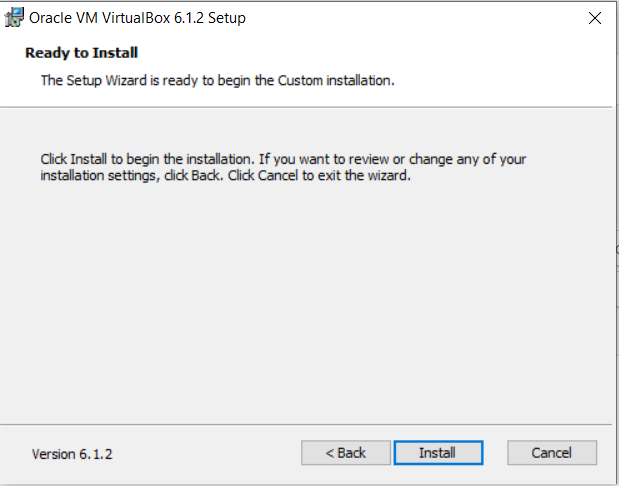
4. Now your ready to install the files Click Next...
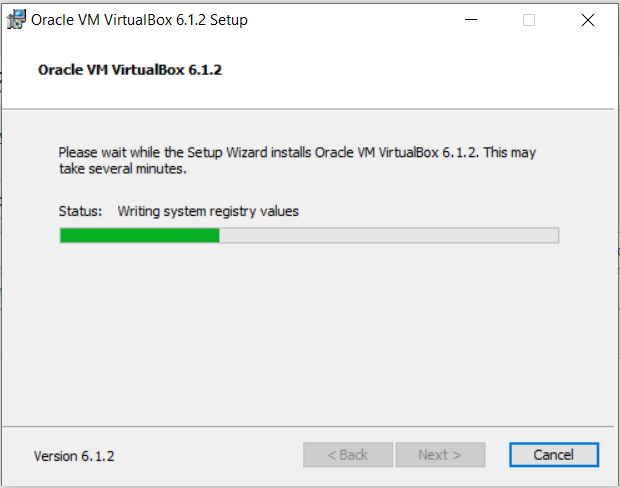
5. Now that it's installing just be patient you might need to restart your computer...
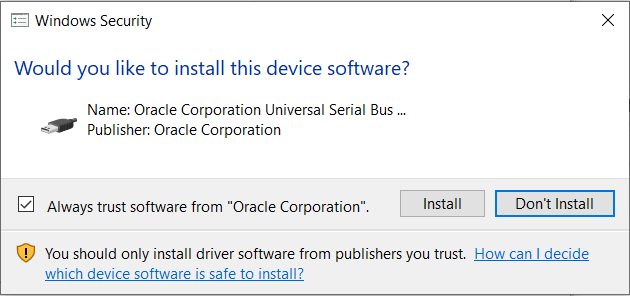
6. Make sure when this dialog box appears you select INSTALL.
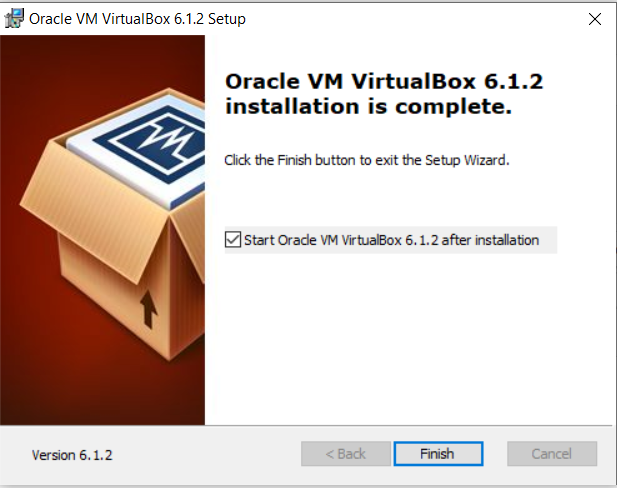
6. Alright now that the installation is finished it's time to close this dialog box and.
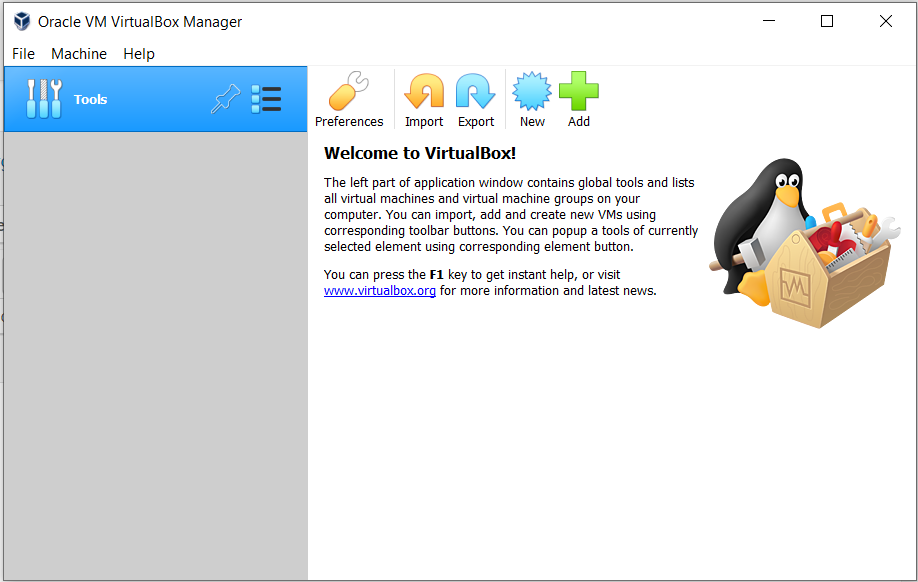
6. Your new installation short-cut should be on your desktop or in your applications in the windows tab. Now let's open [Virtual Box].
In your [Virtual Box] you will see you do not have any Virtual Machines, now you have to download a preferred virtual machine. Continue to Kali-Linux Downloads
I have some links that will give you a deeper understanding and description on how to install [Virtual Box] and how ro install on other systems.
Now you need to Install a Virtual Machine.

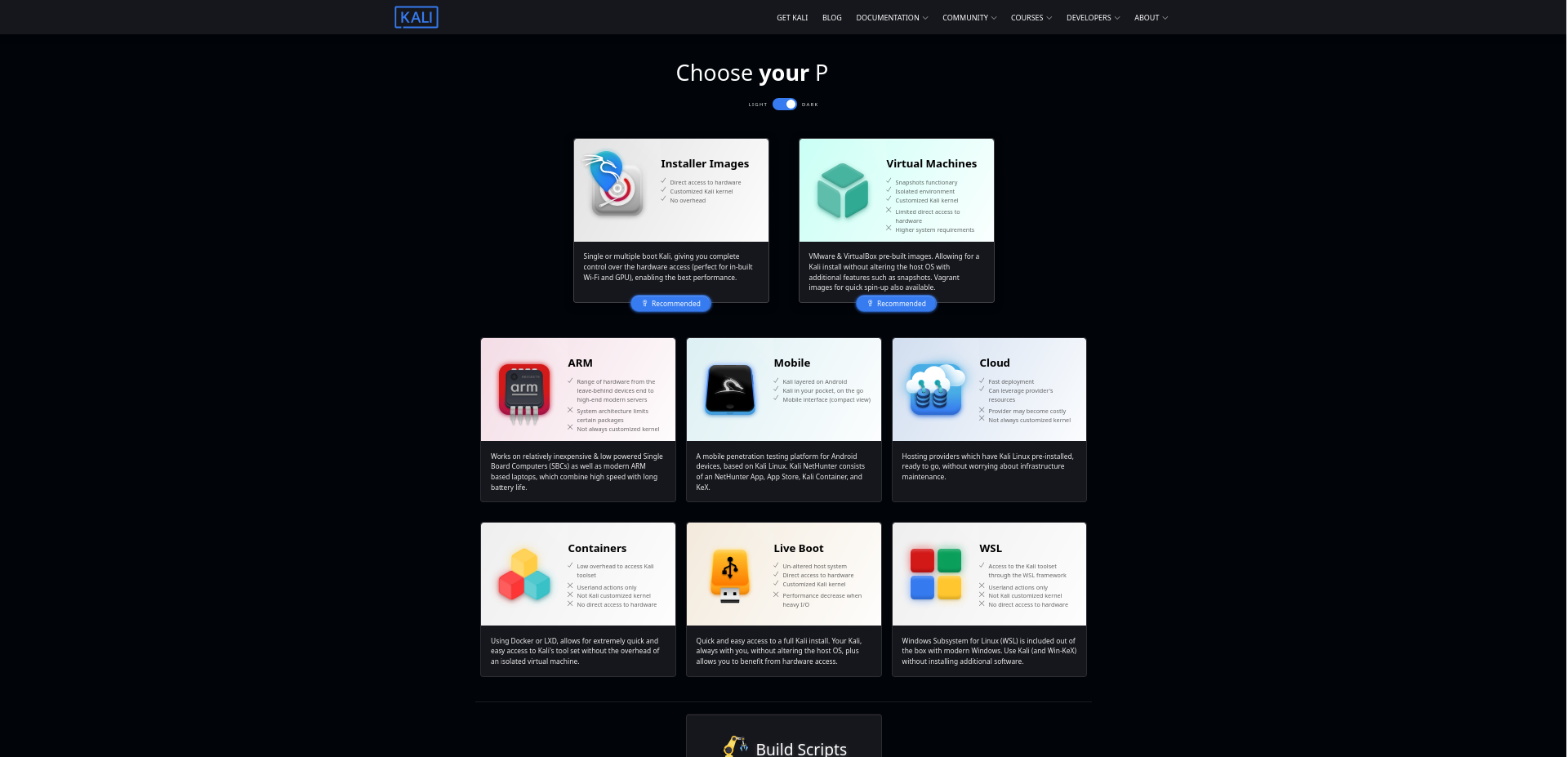
Kali Linux [VMware & VirtualBox] images are available for users who prefer, or whose specific needs require a virtual machine installation.
Now I know that the loading page to Kali-Linux can seem overwhelming and not knowing what to install but as mentioned in the previous vide installing a Virtual Machine or Virtual Box is the best way to run Kali-Linux operating system. Unfortunately I decided to completely wipe my system default Operating System. Incase you want to know how? heres how I did it.I used a 16gb Flash drive to install Kali-Linux ISO Operating System and the used [Rufus] to mount the ISO file but the importing to note here I now have a different OS. I do not recommend anyone changing their OS unless they understand how to boot it in The BIOS and how to install the new OS, short story long this method works. Download Kali-Linux
How to Install Kali-Linux Operating System.
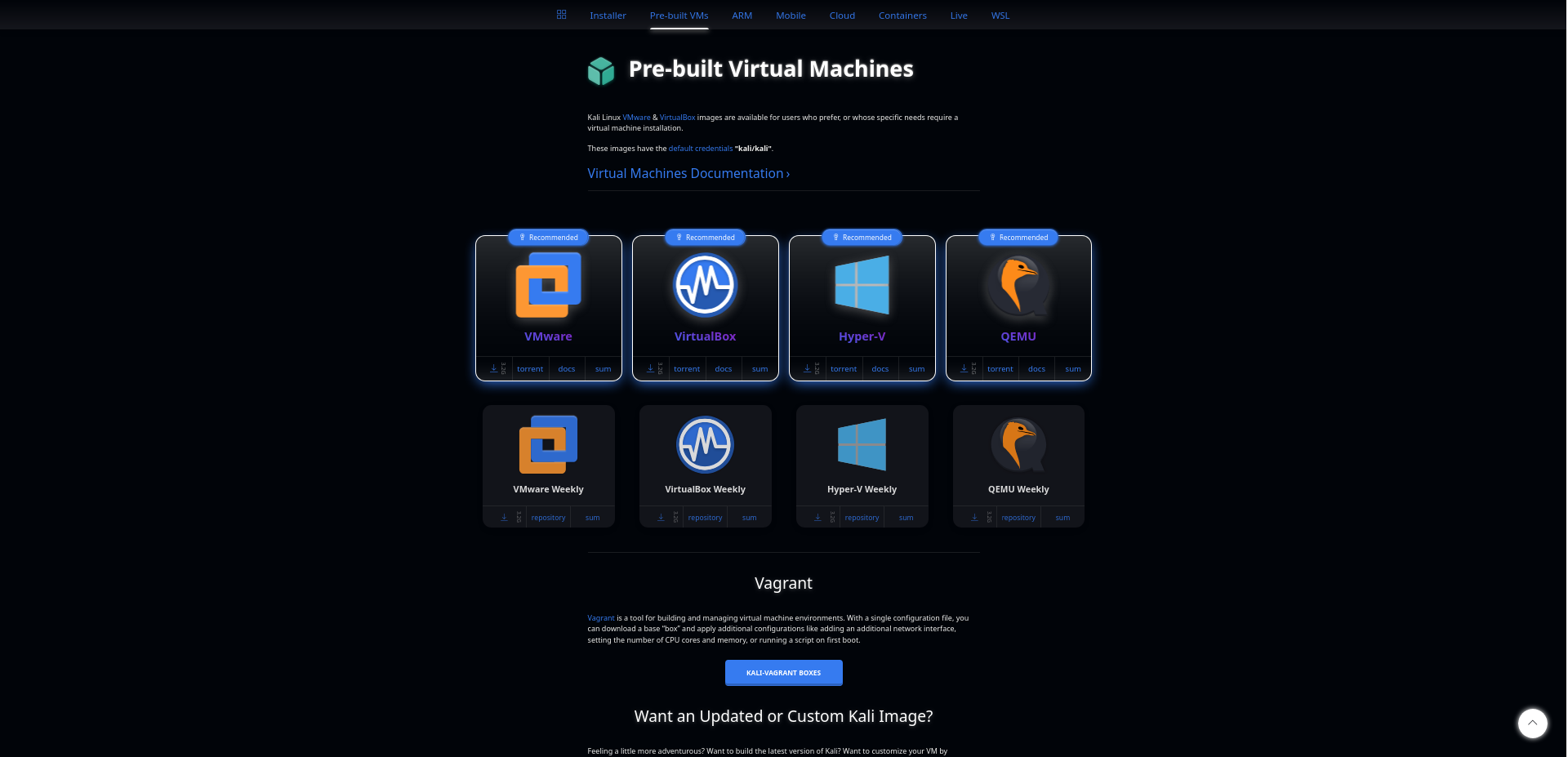
Now that you have chosen your ideal Pre-built Virtual Machines Kali Linux [VMware & VirtualBox] now you have to extract and install it, for those using Windows 11 this process is much easier than using Kali-Linux Os as that would require you to open and Terminal and use command lines to install your os. Download Virtual Machine
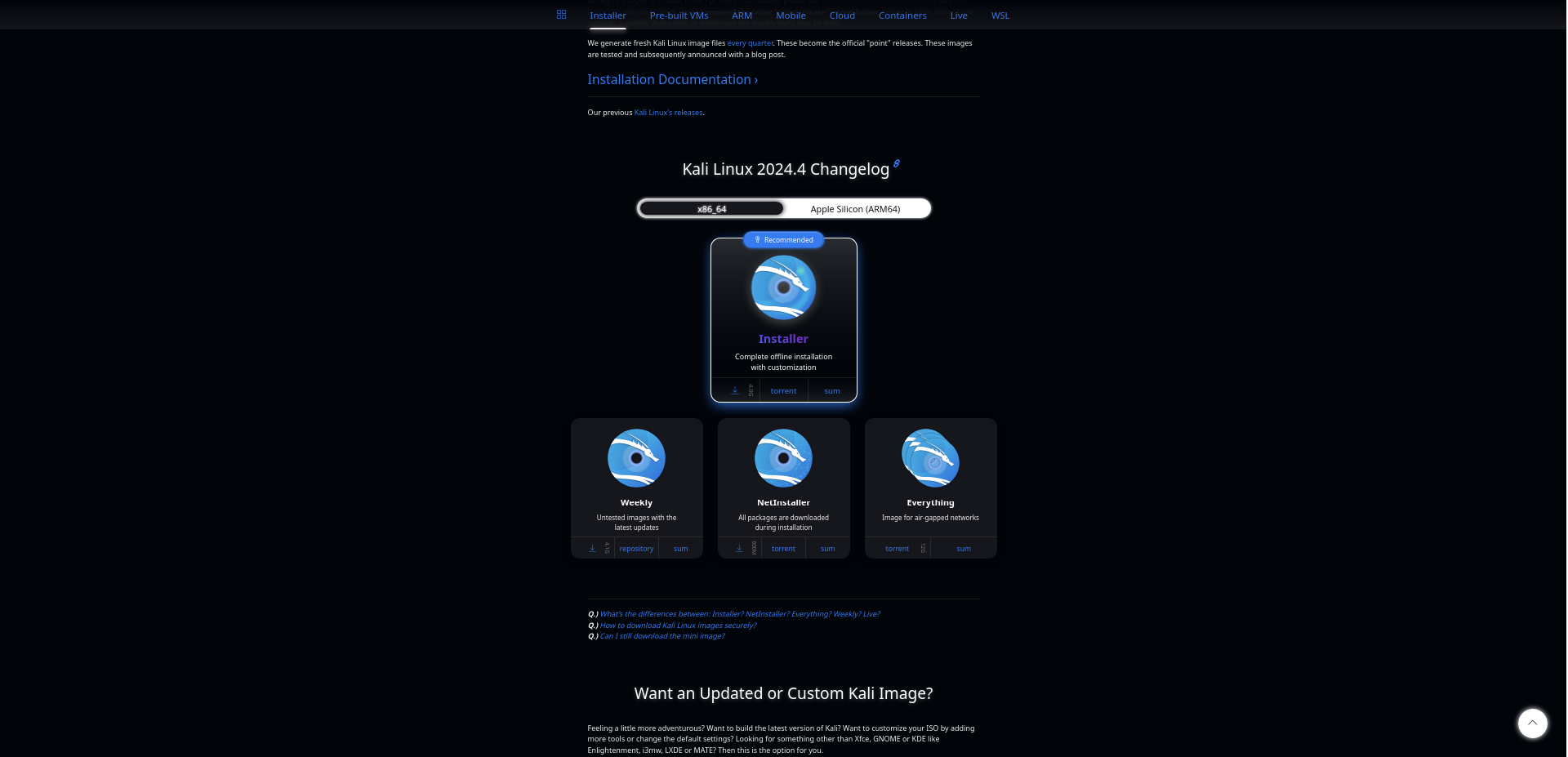
Now it's time to download your package installer sometimes it's an [ISO] file or a package file. I wouldn't install this file until you verified your system requirements and were sure the package file is for your system. I will also attach 2 Linux Community Forums that will help you identify the right package files, or id the video on Installing Kali Linux Operating System worked for you then your ready for the next steps in configuring your Kali-Linux and starting the operating System. Download Kali-Linux Installer
Community Installation Guides